How to set-up the Amazon S3 Upload HLS Chunk Plugin

How to set-up the Amazon S3 Upload HLS Chunk Plugin


1. On your evostream config directory, enable and configure the Event Notifications on the config.lua file. Set the url to the web location of evowebservices.php.


eventLogger=

{

-- the following customData node will be apended to all outgoing

-- events generated by this logger.

customData=123,

sinks=

{

{

-- the following customData node will be apended to all

-- events generated by this sink. It overwrides the

-- customData node defined on the upper level. It can

-- also be a complex structure like this

customData =

{

some="string",

number=123.456,

array={1, 2.345, "Hello world", true, nil}

},

type="file",

filename="..\\logs\\events.txt",

--format="text",

--format="xml",

format="json",

},

{

type="RPC",

url="http://localhost/evowebservices/evowebservices.php",

serializerType="JSON",

-- serializerType="XML"

-- serializerType="XMLRPC"

enabledEvents=

{

"inStreamCreated",

"outStreamCreated",

"streamCreated",

"inStreamCodecsUpdated",

"outStreamCodecsUpdated",

"streamCodecsUpdated",

"inStreamClosed",

"outStreamClosed",

"streamClosed",

"cliRequest",

"cliResponse",

"applicationStart",

"applicationStop",

"carrierCreated",

"carrierClosed",

"serverStarted",

"serverStopping",

"protocolRegisteredToApp",

"protocolUnregisteredFromApp",

"processStarted",

"processStopped",

"timerCreated",

"timerTriggered",

"timerClosed",

"hlsChunkCreated",

"hlsChunkClosed",

"hlsChunkError",

"hlsChildPlaylistUpdated",

"hlsMasterPlaylistUpdated",

"hdsChunkCreated",

"hdsChunkClosed",

"hdsChunkError",

"hdsChildPlaylistUpdated",

"hdsMasterPlaylistUpdated"

},

},

},

},


2. On your evowebservices web directory, enable the Amazon S3 Upload HLS Chunk Plugin on the config.ini file


Example:

Evowebservices Webroot Directory: C:\xampp\htdocs\evowebservices\config\config.ini


Amazon S3 Upload HLS Chunk Plugin


; --------------------------------------------------------------------------

; Configuration for Plugins

; --------------------------------------------------------------------------

;  - Add here the plugin that can be used by the evowebservice

;  - Enable/Disable a Plugin here

;

[Plugins]

StreamLoadBalancer = disabled

StreamAutoRouter = disabled

StreamRecorder = disabled

AmazonHDSUpload = enabled

AmazonHLSUpload = enabled


3. Configure the Amazon S3 Upload HLS Chunk Plugin on the config.ini file


; --------------------------------------------------------------------------

; Configurations for Amazon S3 Upload HLS Chunk

; --------------------------------------------------------------------------

; aws_access_key = The amazon aws s3 access key

; aws_secret_key = The amazon aws s3 secret key

; default_bucket = The bucket in amazon aws s3 where files will be uploaded

; bootstrap = The bootstrap file included with the fragments

;

[AmazonHLSUpload]

aws_access_key = 'THISISASAMPLE'

aws_secret_key = 'thisisasampleawssecretkey+'

default_bucket = 'ems-files'


4. Run the EvoStream Media Server on a Server


service evostreamms start_console


5. Produce a stream from FMLE on server 1 and execute command for createHLSStream


createhlsstream localstreamnames=<streamname_in_fmle> targetfolder=C:\xampp\htdocs\hls groupname=<any_grp_name> playlisttype=rolling


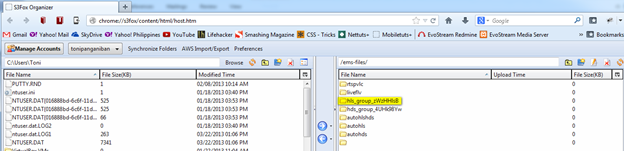
6. Check that the hls files are uploaded to Amazon S3 bucket


Expected Result: The hls chunk is uploaded to Amazon S3 bucket


Connect with us on LinkedIn
Plus one us on Google+
Find us on Facebook
Follow Us