
| Evostream Media Server QuickStart Guide for Windows |
|
1
Get EvoStream Media ServerDownload the zipped file from here. Choose the correct Windows OS version as well as the architecture (32 or 64 bit). 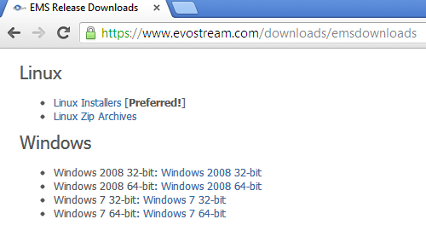
2
Install EvoStream Media Server2.1 Move/copy to target folder.Locate the downloaded file and copy to the target location (example: C:\ems)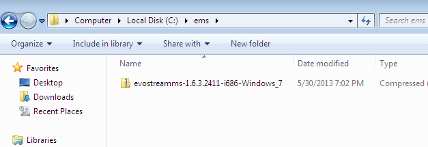 2.2 Right-click on the file and choose "Extract All" (You might need to install either winrar or winzip).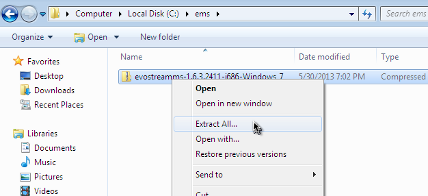 2.3 Double click on the extracted folder.This is normally in the format evostreamms-<version>-<arch>-<os>. For example: evostreamms-1.6.3.2411-i686-Windows_7.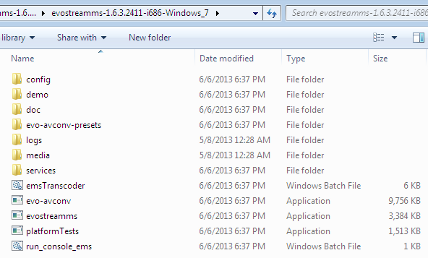 2.4 Copy the downloaded license file to 'config' folder.If you don't have any license file yet, you can get a demo license from here.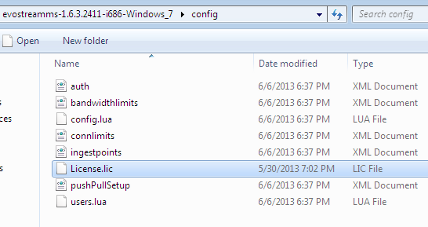
3
Start EvoStream Media ServerOutside the 'config' folder (main folder), double click on the run_console_ems.bat file to start EvoStream Media Server. If a security warning appears, select 'Run'. 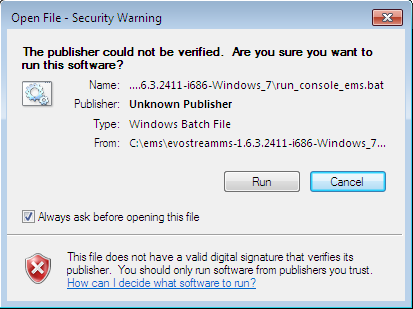 If windows firewall is blocking the ports to be used by EvoStream Media Server, choose 'Allow access'. 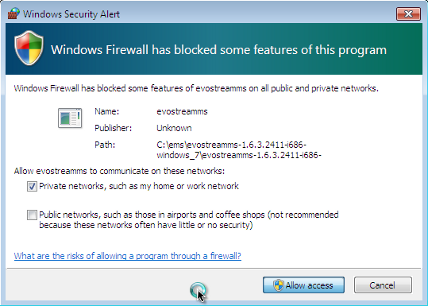 The following console depicts a successful EvoStream Media Server start. 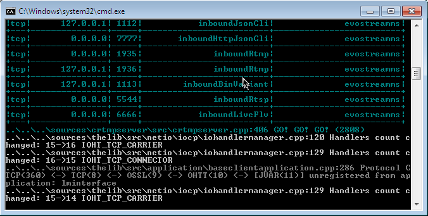
4
Connect to EvoStream Media Server using telnetOpen another command prompt and type the following: > telnet 127.0.0.1 1112 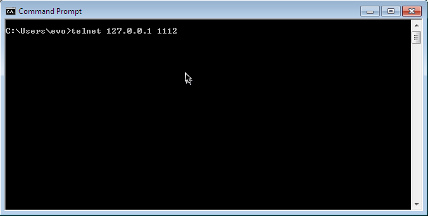 A blank screen is normally presented by the telnet console.  Set the local echo by pressing the 'Ctrl + ]' (CTRL key + right square bracket) keys. Then type the following: > set localecho 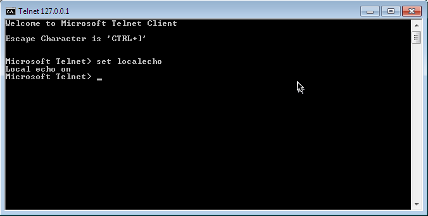 Press the 'Enter' key twice to go back to the telnet session.
5
Pull and play an external streamOn the telnet console, send the following command: pullstream uri=rtsp://<RTSP server IP>:<optional port>/<stream> localstreamname=<local stream name> For example, for an RTSP source at 192.168.2.106 and port of 5544 with a stream name of cameraStream: pullstream uri=rtsp://192.168.2.106:5544/cameraStream localstreamname=stream1 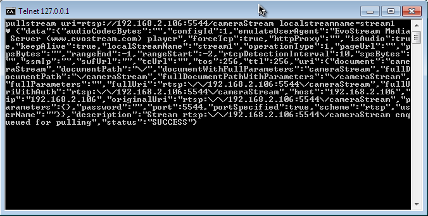 Using any video player (such as VLC), play the stream: rtsp://<EMS server IP>:5544/<local stream name> For example, for an EvoStream Media Server running at 192.168.2.57 and has a local stream name of stream1: rtsp://192.168.2.57:5544/stream1 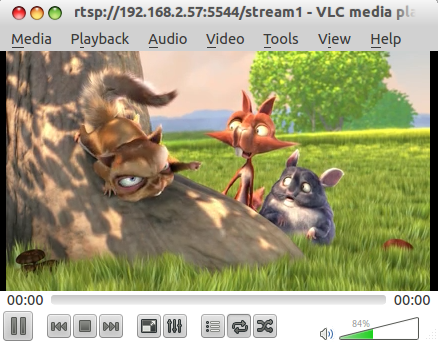
6
Record a local streamrecord localstreamname=stream1 pathtofile=C:\ems\recorded type=flv 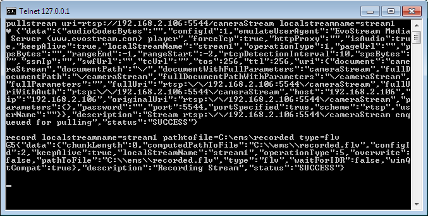 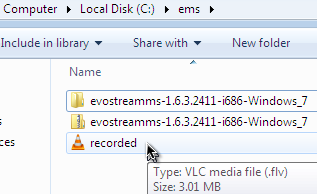
7
Stop EvoStream Media ServerOn the telnet console, simply send the shutdownserver command. shutdownserver EvoStream Media Server will respond with the key parameter: z{"data":{"key":"Dvix73yZrxP18NJp"},"description":"Call shutdownserver again with the provided key","status":"SUCCESS"}
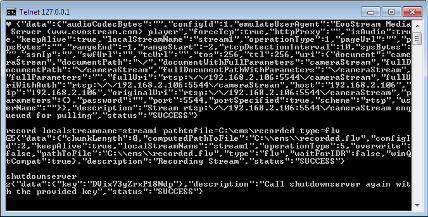 Use the returned key to send the shutdownserver command again along with the key parameter: shutdownserver key=Dvix73yZrxP18NJp 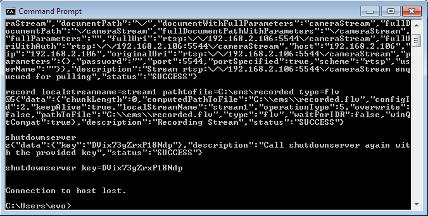 |

Quick Links
Products
Features | Specifications | Download a Trial
Buy a License
Product List
Support
FAQ | Linux Guide | Windows Guide | Forum
Company
About Us | Contact Us | Latest News | Search


